
01 / 03
dm
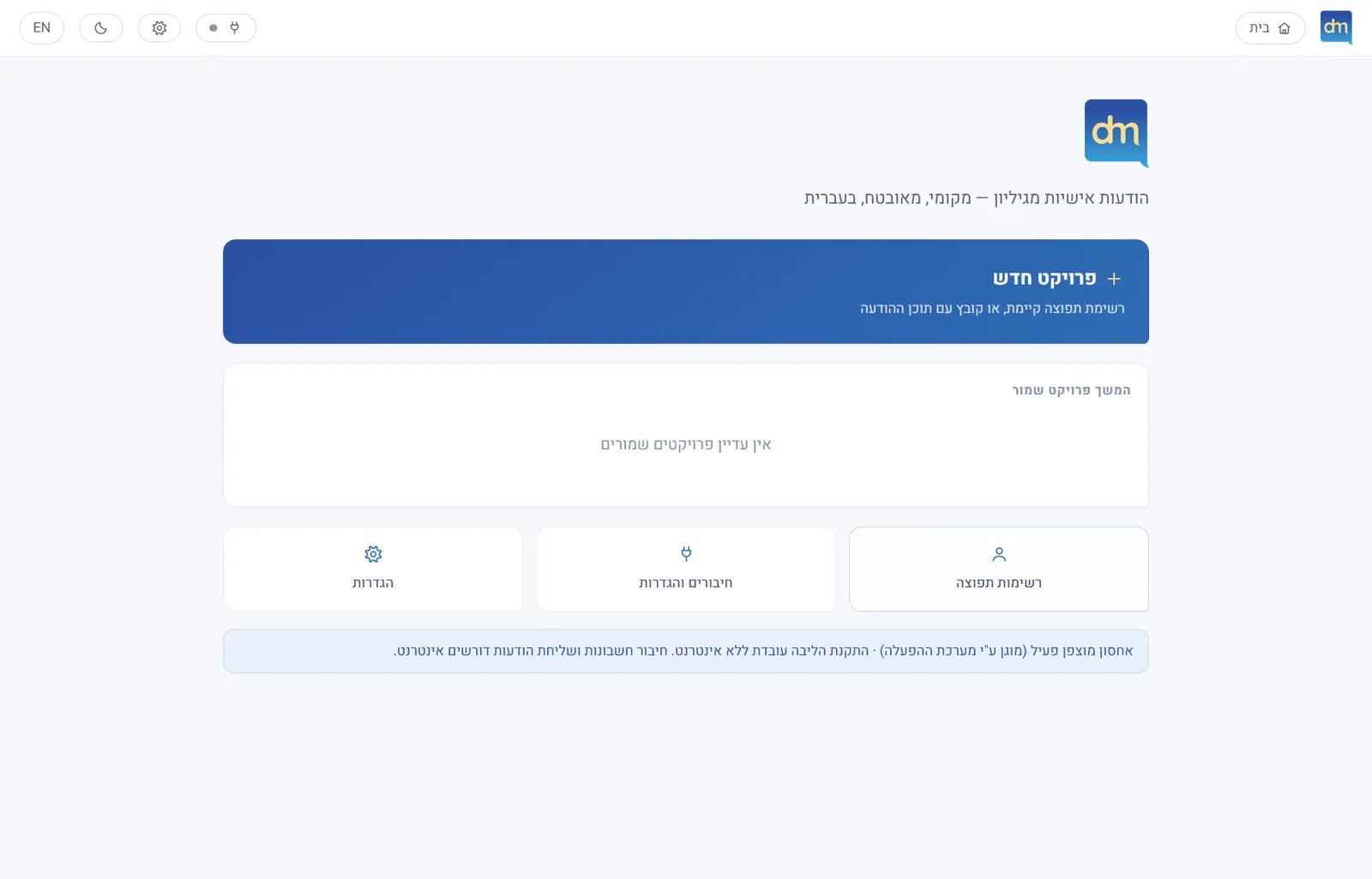
Personal messages from a spreadsheet - local, secure, in Hebrew.
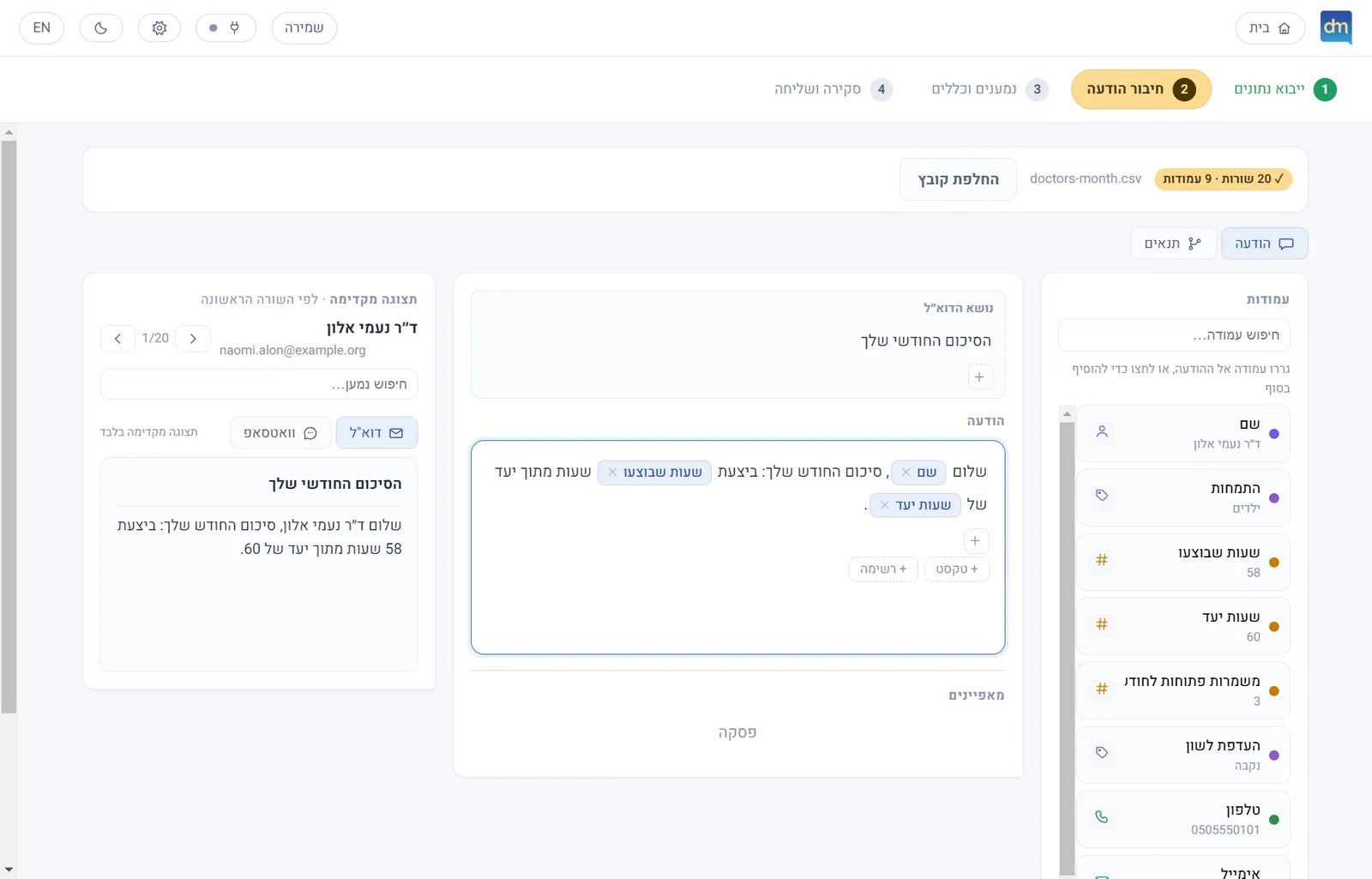
A Windows application that sends each person a message of their own from an Excel or CSV file: fields from the file inside the text, wording that changes by condition, a check before sending, and a measured send by e-mail or WhatsApp. All the data stays on the computer.
Note Every name, address and number on the screens is invented; no real data was used. The screens were captured from the application itself on a fresh profile. This is written for development, information systems and management: the product and what it takes to run it first, then the person who built it.
- My contribution
- Specification, interface and brand design, and direction of the build with Claude Code.
- Discipline
- Creative Labs · UI/UX
- Product state
- MVP · Private demo
01
Where it stands
dm is a complete, working application: everything between the file and the send - import, writing, conditions, checking and approval - works and has been tested. What has not been done yet is a test against real accounts, and the step from one person’s tool to something an organisation runs.
- Idea
- Prototype
- Works end to end
- Tested on real accounts
- Controlled pilot
- In daily use
Today: a working tool tested on files and on a simulated send. Next: a trial with a real mailbox and WhatsApp line, agreed with information security.
Works and tested today
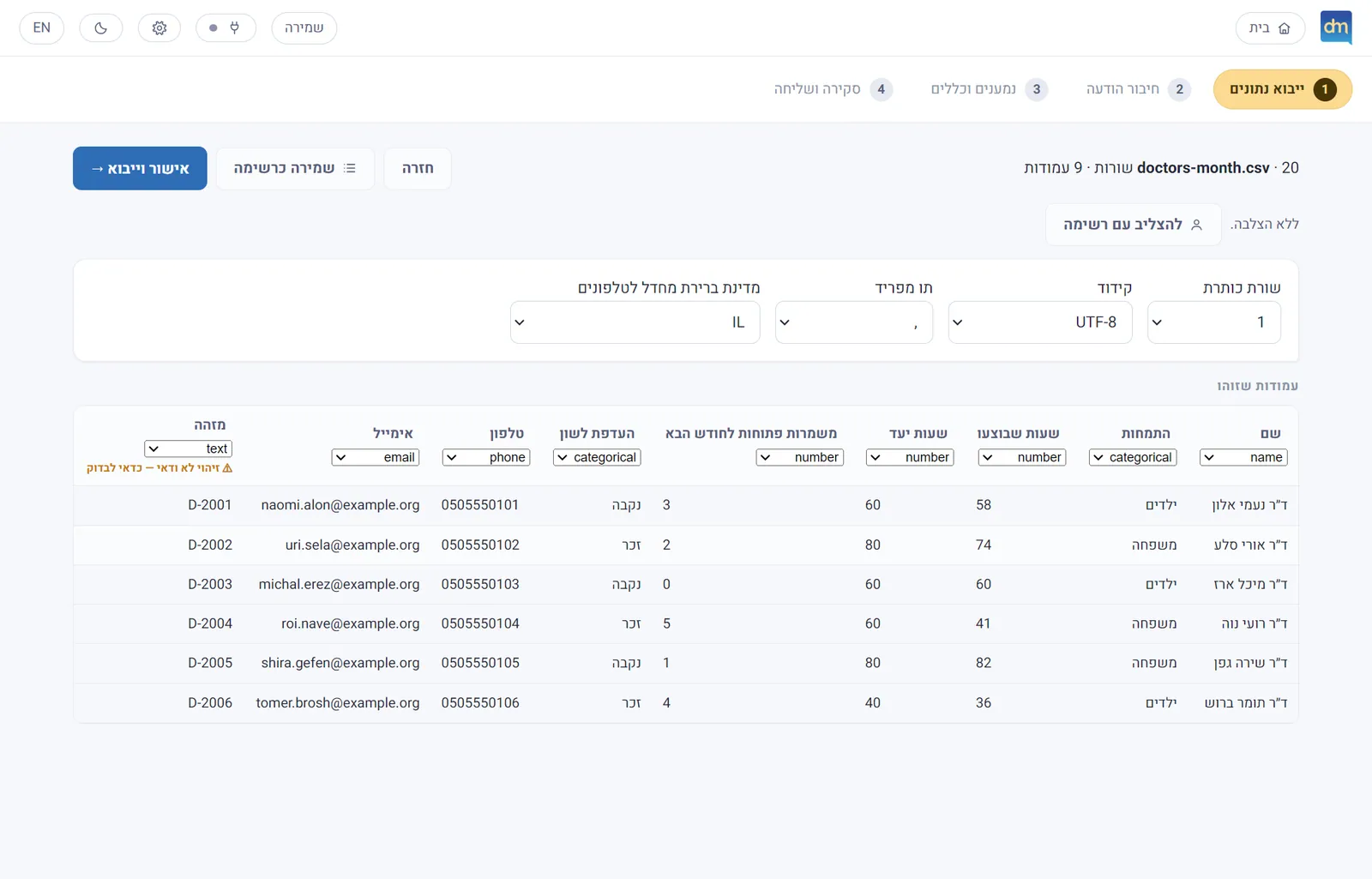
Import of CSV and XLSX with encoding and delimiter detection, and a type for every column
Name, phone, e-mail, number, date. A missing value stays missing - it never turns into zero; an invalid one is flagged, not dropped.
Writing a message with fields from the file and a live preview
Plus conditional wording - a different sentence for a woman and a man, say - on a separate tab in plain language.
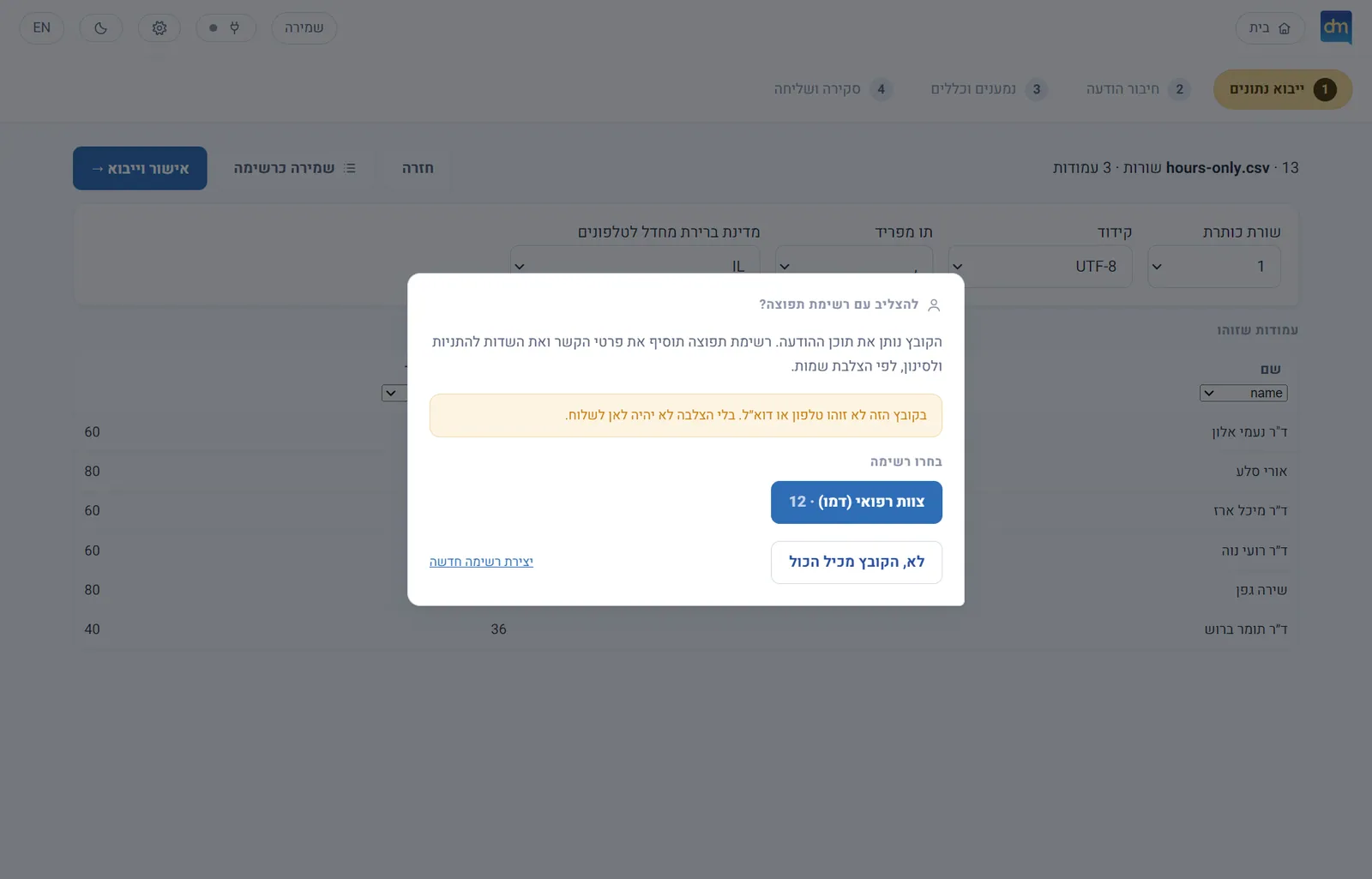
Matching against a distribution list by name, for files that carry no contact details
Anyone not found is listed separately and can be added, chosen by hand or left out.
A review before sending, and an approved send plan that cannot be changed
What was reviewed is exactly what is sent. Duplicates and clashing destinations are flagged and need a decision - they are never merged quietly.
Sending in batches, a safe stop, and resuming where it stopped
In a simulated run of 150 recipients with a stop in the middle: 150 sent, no duplicates, none missed.
Encrypted storage on the computer, and a tool that starts empty on a new machine
Proven by launching the packaged app on a clean profile: it creates a new machine-bound key and empty folders - no passwords, connections or projects.
Needed to be fully functional
A test against a live provider: a real mailbox and a real WhatsApp deviceIS
So far sending has only been tested against a simulated provider. No real recipient has received a message yet.
A decision on how the organisation sends: e-mail through Outlook or the mail server, and an official route for WhatsAppIS
The current WhatsApp link drives WhatsApp Web and is unofficial; the official route (Cloud API) is set up in the settings but not connected.
A digital signature on the installer, and a managed installDev
The installer is not signed today, so Windows shows a SmartScreen warning. Only Windows 11 is supported.
An independent security reviewIS
The threat model and controls are documented, but no certification is claimed and no outside audit has been done.
A controlled trial with a short list and a person approving every sendManagement
What the tests do not cover: sending through a live provider, installing on the organisation’s computers, and performance on very large files. The sentences here rest on the product’s documentation and on running it, not on real use.
02
From the pain to the product
How we got from “everyone needs a different message” to a tool that can be trusted. The telling here is reconstructed from the working process and the documentation.
The pain
A personal message for every person, by hand
When each person needs to hear their own numbers or the wording that suits them, someone copies from a spreadsheet row into a message. It is slow, and every copy can go wrong: someone else’s name, an empty number that became “zero”, the wrong grammatical gender. Afterwards there is no record of who got what.
The requirement
Not a mass mail - a personal send you can check
Saying the same thing to everyone is easy. The hard part is each person’s values and wording, a check before sending, and real Hebrew. Hence the decisions: local rather than cloud, deterministic algorithms rather than an AI that invents, and an interface in the language of someone who is not a specialist.
The turn
What was checked is what is sent
Two principles made the tool trustworthy: typed cells (missing is not zero and not invalid) and an approved send plan that is frozen the moment you approve. Everything else leans on them: the review, the clashes, resuming after a stop.
The connections
Four ways to send, because no single way fits everyone
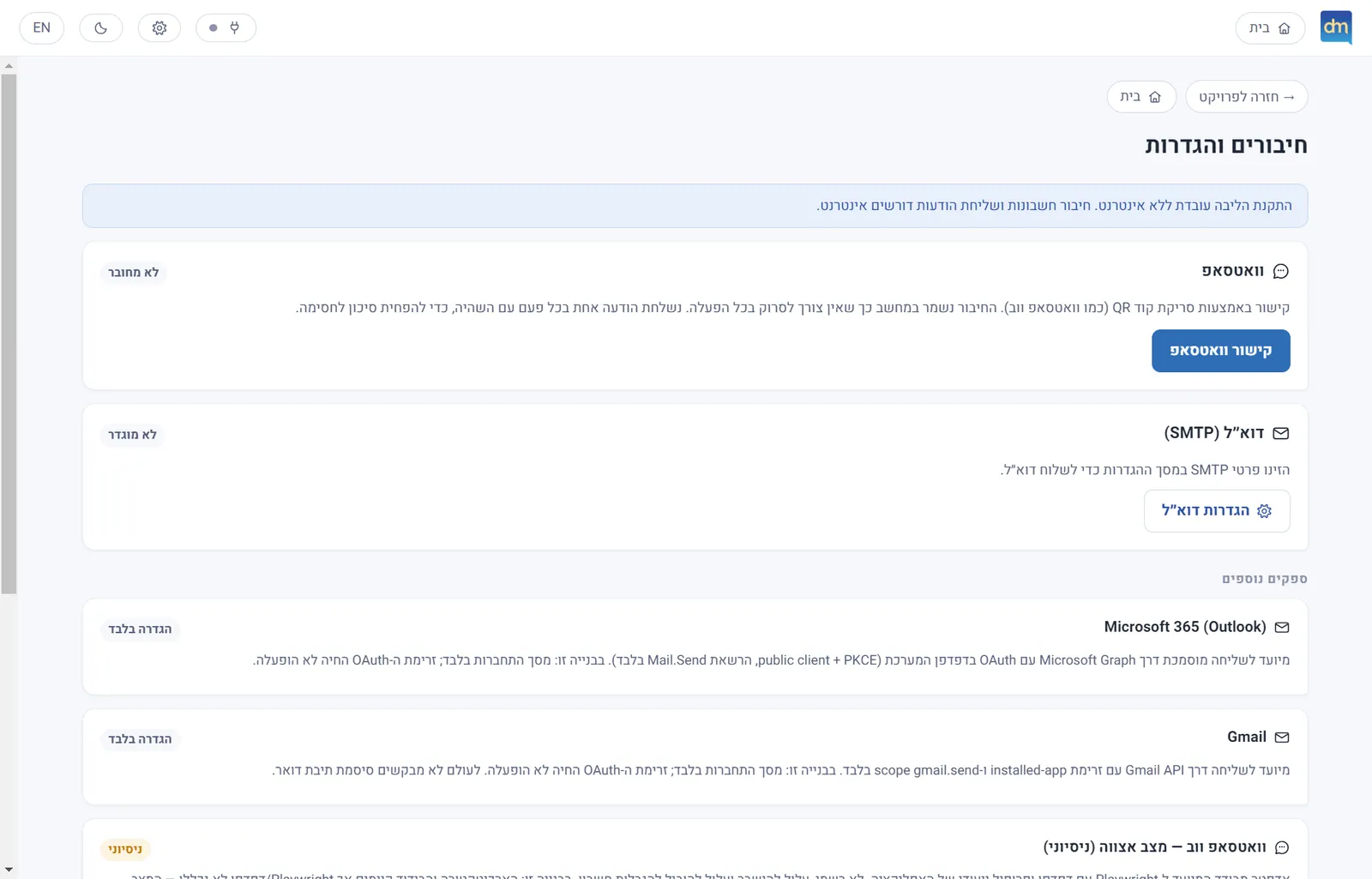
An SMTP server is not always available - many organisations block it. So Outlook, already signed in on the computer, and a Google account were added, and a linked WhatsApp beside them. Each route states what it needs and what its limits are.
The hardening
Prove it, do not assume it
A written threat model, encrypted storage, an isolated interface, and a launch of the packaged app on a clean profile to see that it installs with no passwords and no data. And if something was not tested, the status says so plainly.
Today
A working tool, waiting for a real test
What remains is not code but decisions: how the organisation sends, who approves, and which list to try first.
03
How it works
Four stages in the interface - import data, connect the message, recipients and rules, review and send - and one flow behind them. At its heart is the approved send plan: from the moment of approval nothing in it changes, and every recipient is sent from it.
- In
A file and a distribution list
CSV or XLSX. The file is read without running formulas or macros, and every column gets a type.
- Step
A message with fields
Text, fields from the file and emoji in one flowing line, and a preview for every recipient.
- Step
Conditions
Different wording when a column’s value matches: the first match wins, and if none does, the ordinary wording.
- Step
Recipients and rules
Who receives, on which channel, and what the review shows. Phone numbers are normalised; a destination that repeats is flagged.
- Kept
Review and approval
Every message as it will be sent, with a status for each row. Approval creates a frozen send plan.
- Step
The way it is sent
Four options, with a measured pace for each. Details in the next section.
A mail server (SMTP)E-mail
Outlook installed on the computerE-mail
A Google accountE-mail
A linked WhatsAppMessage
- Out
History and result
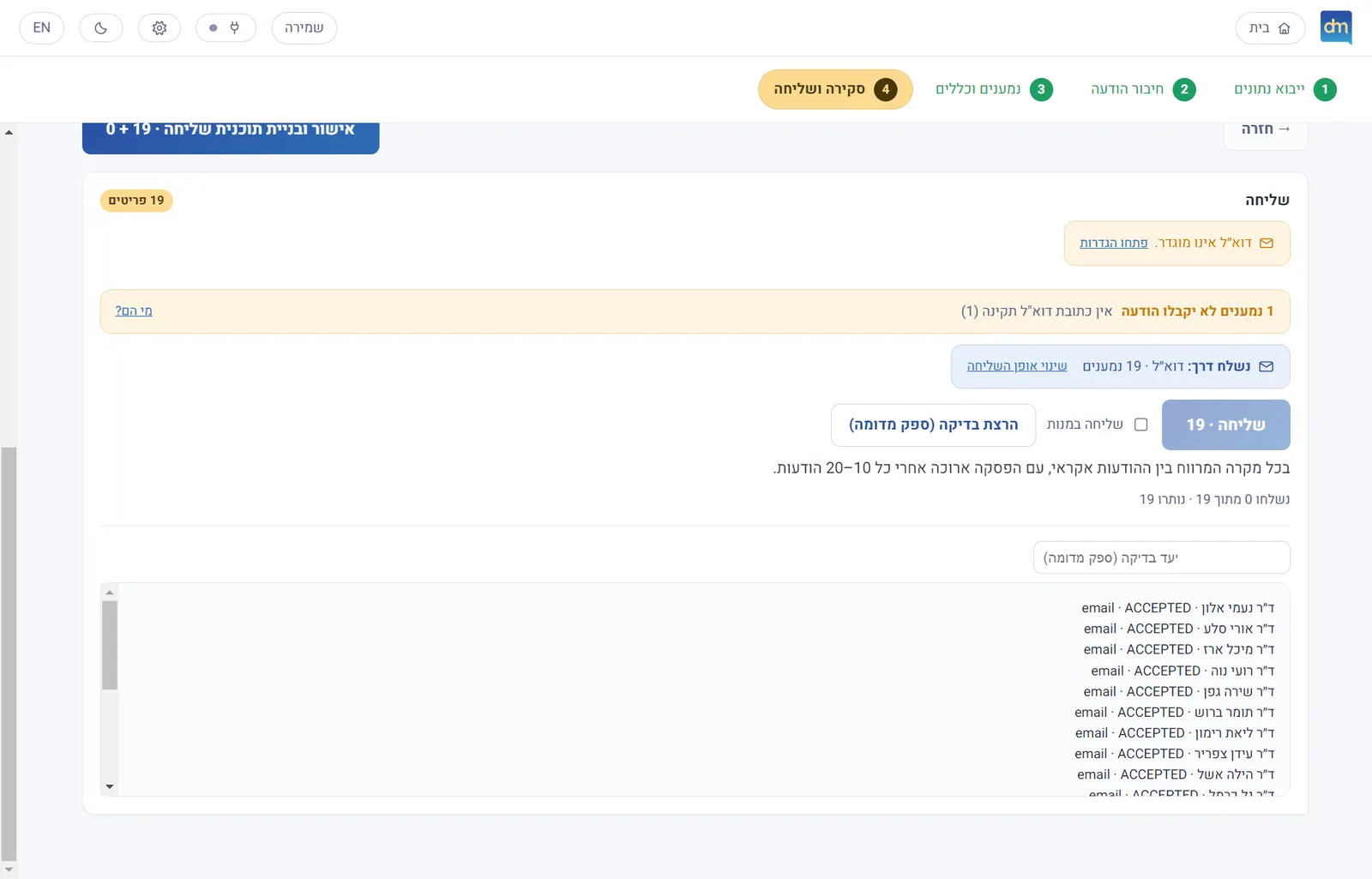
For each recipient: sent, failed or skipped - and why. Acceptance by the provider is not proof of delivery, and the interface says so.
04
How the connections work
The “Connections and settings” screen shows the real state of every route - what is connected, what is only set up, what is switched off - and promises nothing beyond what was built. Here are the four routes and what each one needs.
Mail serverBuilt, needs an account
- How it connects
- An ordinary connection to the mail provider’s SMTP server: host, port, encryption, user, password. Presets for common providers fill the details in one click.
- What it needs
- An account that allows SMTP and a dedicated app password. The details are stored encrypted on the computer and used only to connect to the server.
- The limit
- In many organisations SMTP is blocked outright - which is why there is a second route.
- Why it is built this way
- A cryptic network error when someone typed an e-mail address into the server field became a validity check and a plain-language explanation.
Outlook on the computerBuilt, needs signed-in Outlook
- How it connects
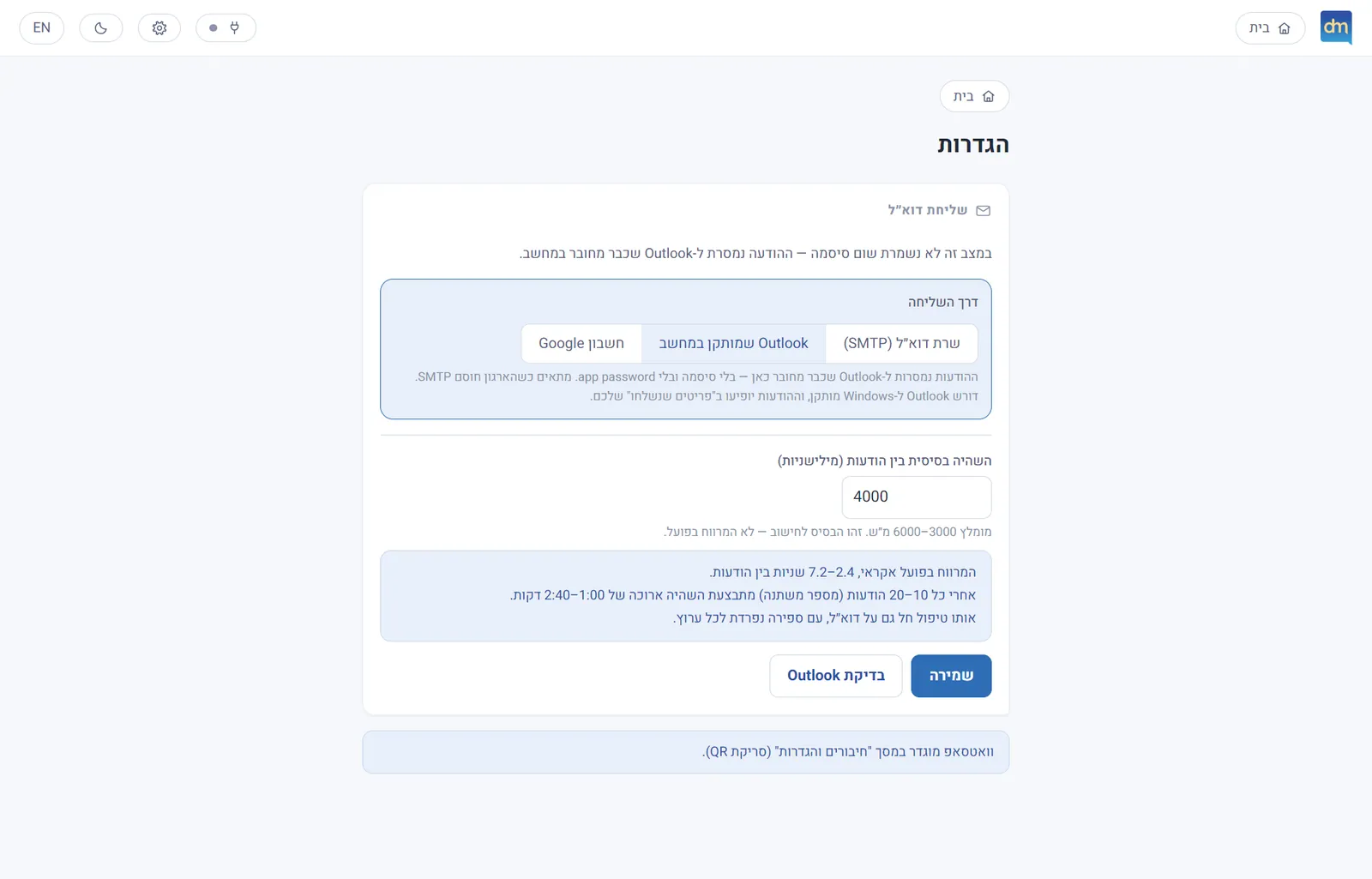
- The message is handed to the Outlook that is already signed in to the mailbox on the computer. One helper process lives through the whole send, so Outlook is not reopened for each message; messages reach it as an encoded payload, so quotes or special characters cannot break or inject anything.
- What it needs
- Outlook installed and signed in. The app never touches a password and never creates one.
- Why it exists
- When the organisation blocks SMTP, an app password cannot even be created. Outlook is already authenticated against that mailbox - so the message is handed to it.
- The limit
- Works only on a computer where Outlook is installed and signed in, and only on Windows.
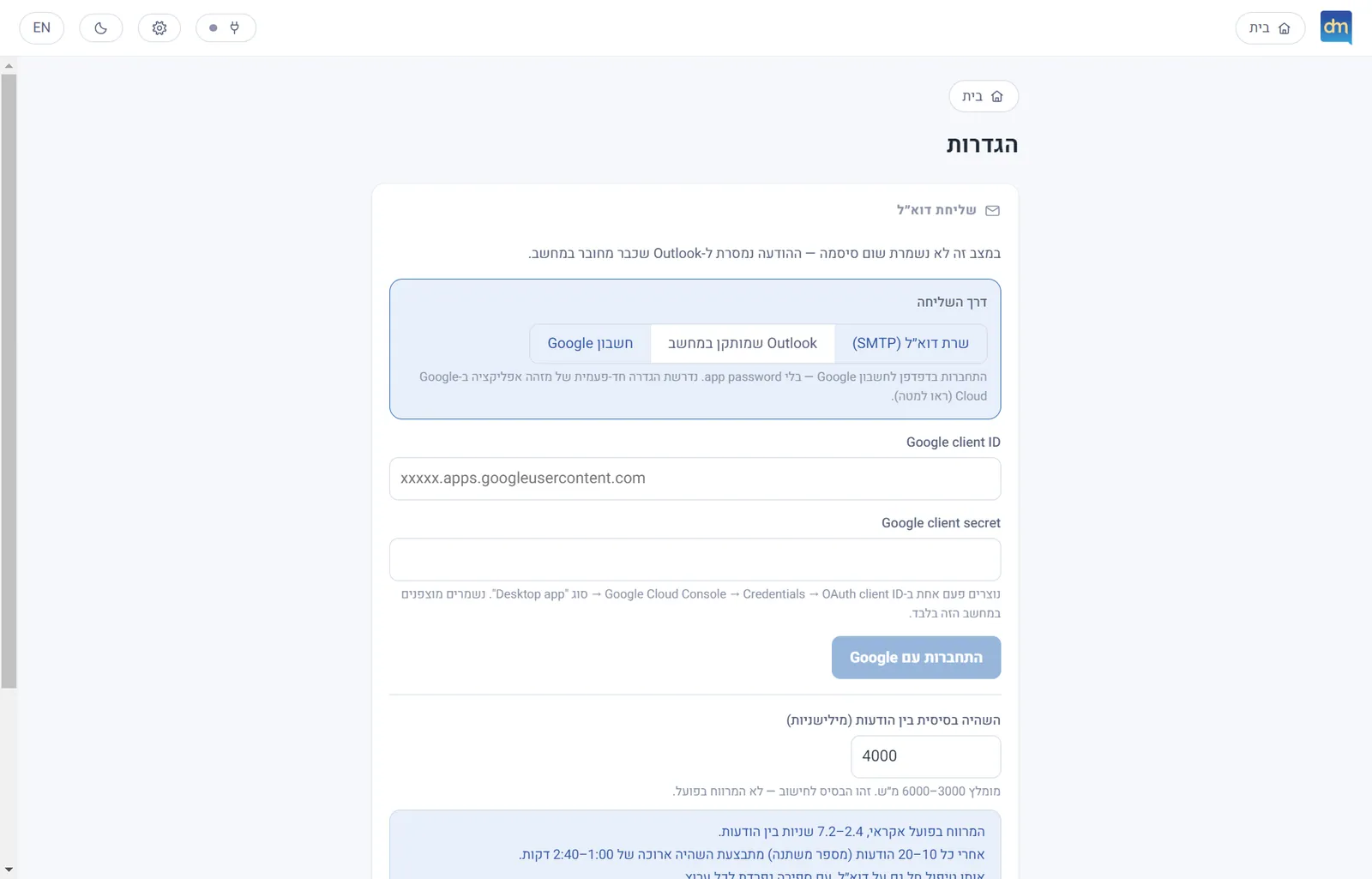
A Google accountBuilt, needs a Google project
- How it connects
- Sign-in in the computer’s real browser (never an embedded window), an OAuth flow with PKCE and a local listener that receives the redirect. Only a refresh token comes back to the app; the password never passes through it.
- What it needs
- The organisation’s own Google Cloud project with a desktop OAuth client; until it is verified, a limit on test users.
- The limit
- The permission required is broad mail access, because authenticated SMTP needs it - a point for information security to review.
WhatsAppWorks, unofficial
- How it connects
- Linking as a linked device: scan a QR code from the phone, or get a pairing code for the phone number. The session is kept on the computer, so there is no re-linking at every launch, and each destination number is verified before it is sent to.
- What it needs
- A real WhatsApp device and an internet connection. A real-device test has not been done yet.
- Limit and risk
- It drives WhatsApp Web, not an official interface: it can break, and it can lead to the account being restricted. That is why the pace is random with long breaks, and why there is an “assisted” mode that prepares a message and leaves the final send to a person.
- The official route
- The WhatsApp Cloud API: it is set up in the settings (number ID, approved template, variable mapping) but not connected for live sending. This is the route that suits an organisation.
05
A pace that does not look like a machine
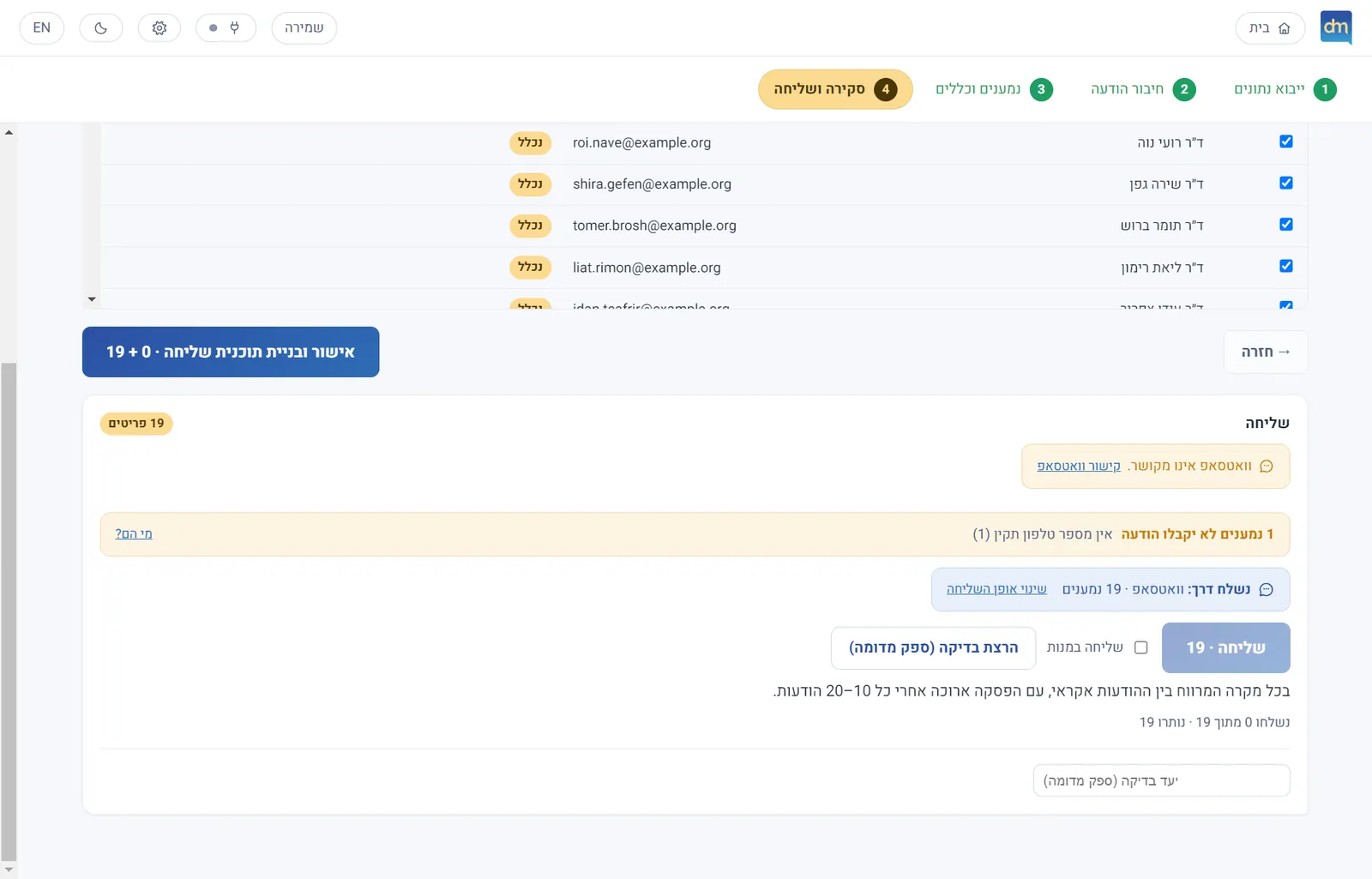
A fixed gap between messages is itself a sign of automation. On WhatsApp the pace is random: a gap between 0.6 and 1.8 times the setting, and a long pause after every 10 to 20 messages, whose length is also drawn each time. The pause shows as a countdown, it can be cancelled, and e-mail keeps the fixed pace.
- 17 messages: 80 seconds
- 108 s: 108 seconds
- 13: 61 seconds
- 155 s: 155 seconds
- 13: 61 seconds
- 116 s: 116 seconds
- 17: 80 seconds
06
From the file to the message
The screens are captures of the application itself, with invented data. Click a screen to scroll inside it.
Tap to scroll the page insideClick to scroll the page inside
Tap to scroll the page insideClick to scroll the page inside
Tap to scroll the page insideClick to scroll the page inside
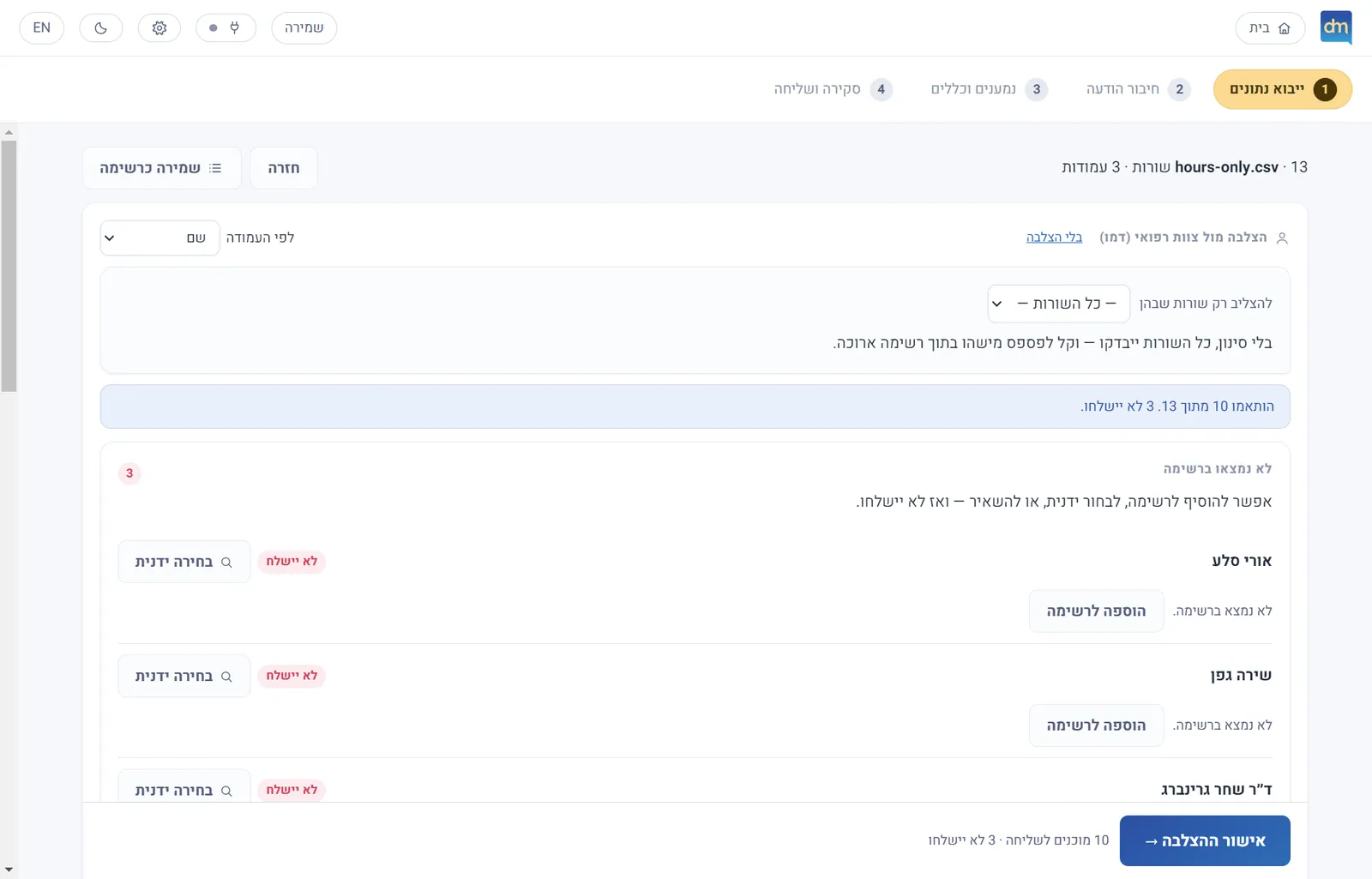
Tap to scroll the page insideClick to scroll the page inside
Tap to scroll the page insideClick to scroll the page inside
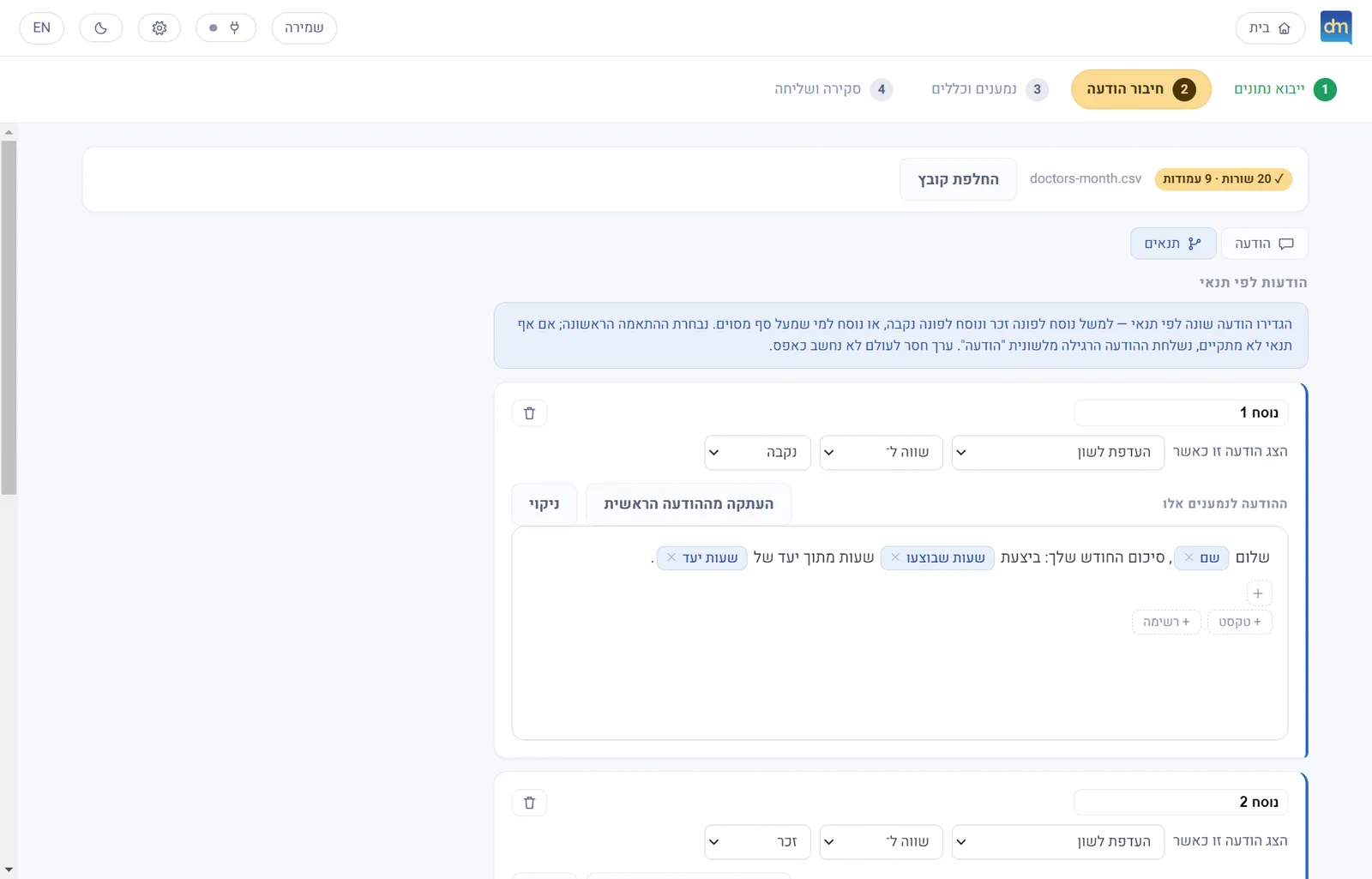
Tap to scroll the page insideClick to scroll the page inside
07
From the list to the send
Recipients and rules, the review, and the send screen itself - including a test run on a simulated provider, which can be done before touching a real account.
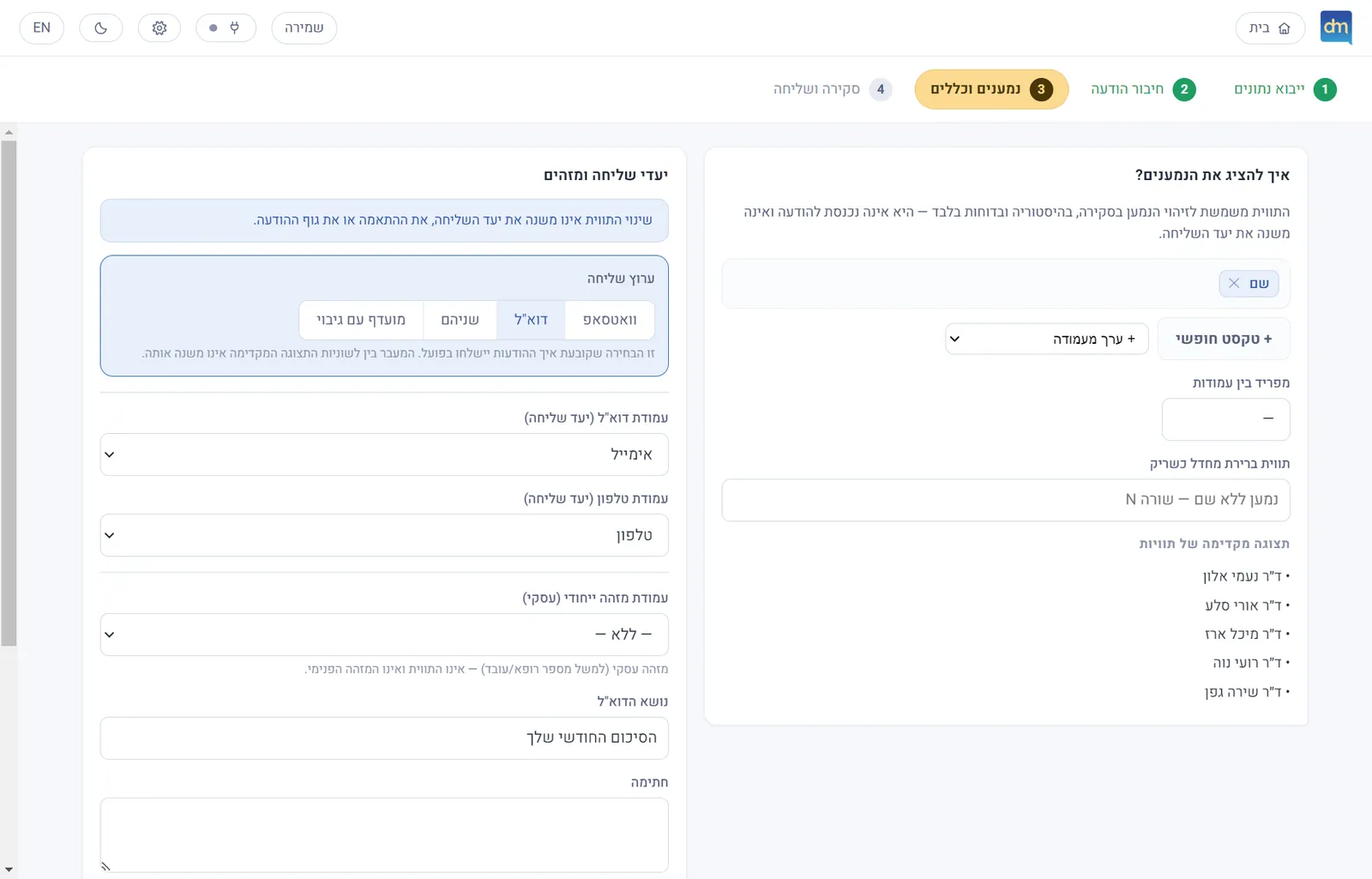
Tap to scroll the page insideClick to scroll the page inside
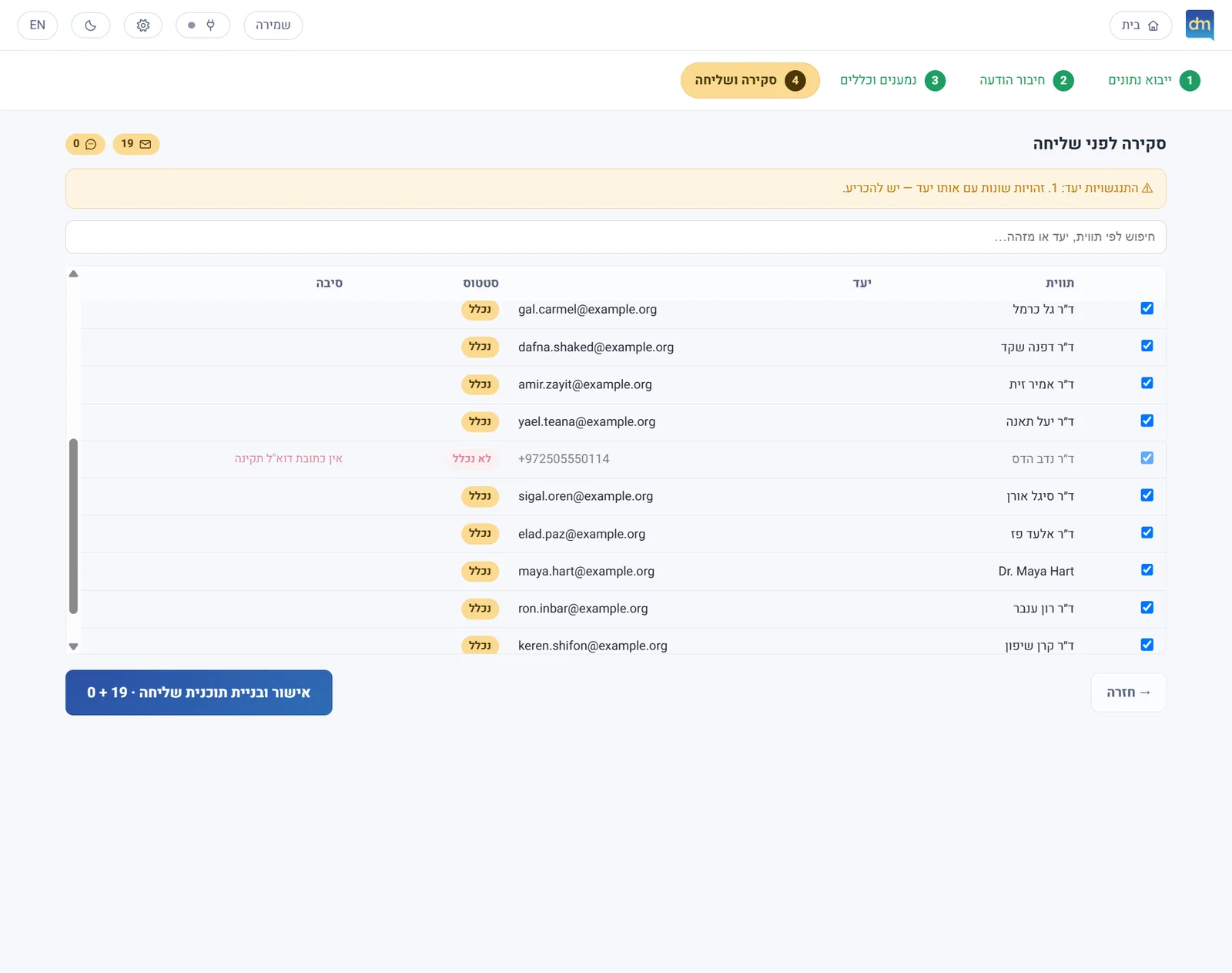
Tap to scroll the page insideClick to scroll the page inside
Tap to scroll the page insideClick to scroll the page inside
Tap to scroll the page insideClick to scroll the page inside
Tap to scroll the page insideClick to scroll the page inside
Tap to scroll the page insideClick to scroll the page inside
Tap to scroll the page insideClick to scroll the page inside
08
Cracks and fixes
Real faults that surfaced on the way, and what turned each from a problem into a feature. Each is recorded in the product’s status notes.
The problem
A missing value in the sheet turned into a message saying “you did 0 hours”.
The fix
Typed cells: missing is not zero and not invalid, and the original value is kept. Only one explicit fallback rule accepts a missing value, and if you want a zero you write it.
The problem
A rule for “fewer than 6” and one for “more than 6” quietly drop the person with exactly 6.
The fix
The boundary value is handled explicitly and cannot fall between the rules; there is a test for it.
The problem
Two people with the same phone or address, or one person listed twice.
The fix
Destination-clash detection: nothing is merged quietly. The review shows the clash and requires a decision before approval.
The problem
In many organisations SMTP is blocked and an app password cannot be created.
The fix
Sending through the Outlook already signed in on the computer: no password, and messages reach the helper process as an encoded payload.
The problem
WhatsApp linking crashed at start-up when a stuck browser profile was left from last time.
The fix
Stale lock files are cleared, and if start-up still fails the session is wiped and retried once on a fresh profile. A QR code appears instead of a crash.
The problem
WhatsApp reloads its page right after linking, and the message in flight fails.
The fix
The app waits for the connected state before each send and retries a send that failed on a momentary frame error, with a growing delay.
The problem
A long list sent in one go cannot be stopped and resumed safely.
The fix
Batches: send the next N and decide when each batch starts. A stop in the middle advances the cursor only by what was actually attempted, so the next batch resumes at the first recipient not yet sent.
The problem
An Excel file can carry formulas, macros or hostile content.
The fix
The file is read without running anything; values are escaped before they enter an e-mail, and links are allowed only as http or https. The formula reader is hand-written and never runs code from the file.
09
Brand, splash and motion
The interface is built from the logo’s own colours: a deep blue at the top of the bubble, sky at the tail, and cream lettering. Cream is the only warm thing on screen and marks only what is live right now, so it does not lose its meaning. The opening animation is Steve’s, recorded from the application itself.

- Deep blue#2C50A3Top of the bubble, main buttons
- Mid blue#2E6DB6The accent
- Sky#359ED8The tail of the bubble
- Cream#FBDA90Only what is live now
- Ground#F6F8FBThe app background
- Ink#1F2937Text
Type
- Heebo bundled inside the app, nothing loaded from the network (open licence)
Design rules
- The logo never mirrors in RTL: the bubble’s tail is always in the bottom-right corner.
- Hebrew first, and a full dark mode with a switch, remembered between launches.
- Each column type has its own subtle colour, to recognise at a glance.
- No screen promises more than was built: every provider is shown in its real state.
10
Tools and how they fit
Steve specified, designed and directed; Claude Code wrote and checked according to the decisions. Here are the stages and the tools in each.
01
Specify
The specification in Claude is based on a specification document: requirements in Hebrew, decisions that are written down, and an honest status that marks what was tested and what was not.
- Claude Codethe specification conversation, based on the specification document, recording decisions
- Figmawireframes
02
Design and brand
Logo, colours and tokens, and the opening animation.
- Illustratorcreating the logo
- After EffectsSteve’s opening animation
- Lottieplaying the animation inside the app
03
Build
A framework-free core, and a hardened desktop shell.
- Electronthe desktop application
- React · Vite · TypeScriptthe interface and the core
- SheetJS · Papa Parse · libphonenumberreading files and phones
- nodemailer · whatsapp-web.jssending by e-mail and WhatsApp
- PowerShellthe Outlook helper process
04
Check
Deterministic tests for the core, and evidence from the packaged app.
- Vitestimport, rules, rendering, pacing, resume
- Zodvalidating every message between the interface and the main process
05
Package and hand over
An installer and documents: security, dependencies and licences.
- electron-builder (NSIS)the Windows installer
- package-lockreproducible builds
11
What it takes to run for real
The list is split by who has to decide or supply. Nothing in it requires rewriting the product.
Information systems
Decide how the organisation sends, and approve it.
- A mailbox for the trial, or approval to send through the installed Outlook.
- A ruling on WhatsApp: the official route (Cloud API) instead of the unofficial link, with a business account and approved templates.
- A security review, and approval of the dependencies and licences as listed in the product.
- Approval to install on the organisation’s computers (Windows 11).
Development
Close what is left in the code and the hand-over.
- Code signing for the installer, and signed version updates.
- Connecting the WhatsApp Cloud API for live sending, and Microsoft Graph as an alternative to local Outlook.
- A durable send queue with retries and scheduling (it exists as a data model, not as a complete mechanism).
- Load tests on very large files.
Management
Define who uses it and how widely.
- A first list for the trial, and a person who approves every send.
- A policy: which messages may be sent this way, and to whom.
- Ownership of the product after the trial: who maintains it, and who takes the requests.